
Advanced task management
Master advanced task management in Vigilare with custom statuses (Waiting, Dropped) and window-level control.
Take your productivity to the next level with Vigilare’s advanced features for status tracking and window control.
Status management
Beyond simple “Incomplete” and “Complete” states, Vigilare offers advanced statuses to reflect the reality of your work. These statuses are stored in the task’s notes as YAML frontmatter metadata, ensuring they sync across devices while remaining compatible with Apple Reminders.
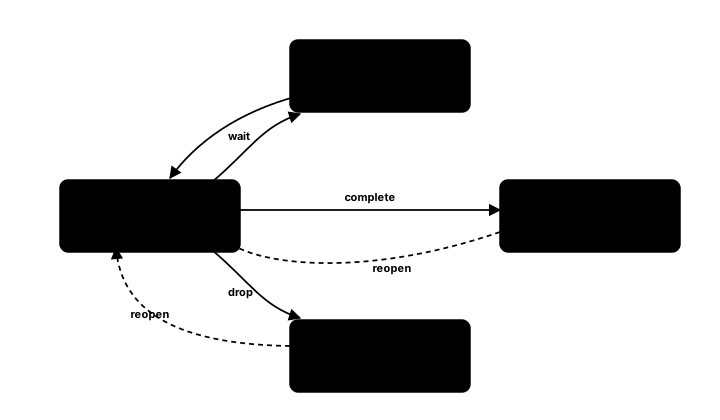
Waiting (⏳)
Use case — you’ve done your part, but you’re waiting for someone else (e.g., a reply to an email, a code review, an approval).
- How to set
- Right-click a task → Status → Waiting
- Or in the Edit Window sidebar → Status → Waiting
- Behavior
- The task remains Incomplete.
- Its row shows a “Waiting” chip.
- It is grouped into a dedicated Waiting section, so it stays visible in your active list rather than the Completed section.
Dropped (🚫)
Use case — you decided not to do this task, but you want to keep a record of it instead of deleting it.
- How to set
- Right-click a task → Status → Dropped
- Or in the Edit Window sidebar → Status → Dropped
- Behavior
- Under the hood the task is marked completed in Apple Reminders (EventKit has no separate “dropped” state).
- In Vigilare’s own list it moves to a dedicated Dropped section — separate from the Completed section, which excludes dropped tasks.
- Its row shows a “Dropped” chip, distinguishing it from tasks you actually finished.
Window level
Vigilare’s window — including the task editor, which opens inside it — floats according to a single window-level setting, so it can stay in view while you work in other apps.
Set the window level
Open Settings → Window → Window Level and choose how the window behaves:
- Always on Top — floats above all other windows, even fullscreen apps.
- Normal — behaves like a regular window; other windows can cover it.
- Desktop — sits behind your windows, like part of the wallpaper.
The editor inherits this setting because it opens inside the main window, so editing or completing a task never drops Vigilare behind whatever you’re referencing.